

TECHNICAL DOCUMENTATION
SSP 910153 – Audi Virtual Cockpit
Loading PDF…
Read document text
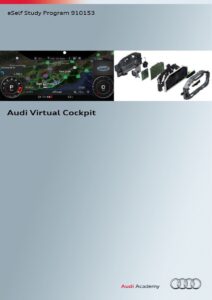
eSelf Study Program 910153Audi Virtual Cockpiti
Audi of America, LLC Service Training Created in the U.S.A. Created 5/2015 Course Number 910153 ©2015 Audi of America, LLC All rights reserved. Information contained in this manual is based on the latest information available at the time of printing and is subject to the copyright and other intellectual property rights of Audi of America, LLC., its affiliated companies and its licensors. All rights are reserved to make changes at any time without notice. No part of this document may be reproduced, stored in a retrieval system, or transmitted in any form or by any means, electronic, mechanical, photocopying, recording or otherwise, nor may these materials be modified or reposted to other sites without the prior expressed written permission of the publisher. All requests for permission to copy and redistribute information should be referred to Audi of America, LLC. Always check Technical Bulletins and the latest electronic service repair literature for information that may supersede any information included in this booklet.This eSSP contains video links which you can use to access interactive media.Revision 1: 5/2015ii
Introduction ....................................................................................... 1 Variations of the Audi virtual cockpit.................................................. 2Classic and Infotainment views ............................................................................................................................... 3TTS sport view..................................................................................... 4Toggling between views ............................................................................................................................................ 4Main functions..................................................................................... 5The main menu .......................................................................................................................................................... 6 Subdivision of the display panel into various display areas ................................................................................... 8 Displays in the central display area ......................................................................................................................... 9 Bar with turn signal symbols and warning symbols ............................................................................................ 10 Tab bar ...................................................................................................................................................................... 11 Left side display ....................................................................................................................................................... 13 Right side display ..................................................................................................................................................... 16 Selection menu ....................................................................................................................................................... 17 Options menu ........................................................................................................................................................... 19 Status bar ................................................................................................................................................................. 23Other displays of the Audi virtual cockpit.........................................24Display of warnings and fault messages ............................................................................................................... 25Design of the Audi virtual cockpit.....................................................28 Circuit diagram of the instrument cluster.........................................30 Self-study programs..........................................................................32 Knowledge assessment.....................................................................33This eSelf Study Program covers a basic overview of the design and functions of new models, new automotive components or technologies. It is not a Repair Manual! All values given are intended as a guideline only. For maintenance and repair work, always refer to the current technical literature.NoteReferenceiii
iv
IntroductionThe launch of the 2016 Audi TT sees the rollout of a high resolution display as the central instrument cluster for the first time in an Audi vehicle. The official name for this innovation is Audi virtual cockpit. The Audi virtual cockpit replaces the previous instrument cluster with its classic instrument gauges and is standard equipment in the Audi TT. It combines the functions of a conventional instrument cluster and central MMI monitor in a single unique TFT display. All functions and services are represented by brilliant 3D-like graphics and detailed effects. The display has a resolution of 1440 x 540 pixels. The display measures 12.3 inches (31.2 cm) diagonally. The driver can choose between two display views for the TT -- Classic view and Infotainment view. The TTS has a third option (see page 4). In the Classic view, the gauges (speedometer and tachometer) dominate. In the Infotainment view, additional functions such as Navigation, Telephone, and Audi connect or Media feature prominently. The displays for ambient temperature, time and mileage as well as warning and information symbols are firmly embedded at the bottom edge of the display in both modes.628_017aIf the driver wishes, the navigation map spreads out over the full area of the display panel. At the same time, the speedometer and tachometer are minimized. Navigation maps and other infotainment content are now displayed directly behind the steering wheel in the Audi virtual cockpit. The system can be operated using the multifunction steering wheel or the MMI operating controls in the center console.To enable content to be displayed quickly and in a valid format, Audi is the first car maker to use the quadcore Tegra 30 chip from the NVIDIA Tegra 3 series. This graphics processor generates 60 frames per second ensuring the needles of the speedometer and tachometer are rendered with absolute precision. The Audi virtual cockpit is able to display a wide variety of information -- from the graphics of the driver assistance systems and the images of the back-up camera system to dynamic vehicle animations.1
Variations of the Audi virtual cockpitThe introduction of the Audi virtual cockpit reduces the number of instrument cluster variants from 11 in the predecessor model to two for the 2016 TT. There is an instrument cluster variant for the United States market and a variant for the other markets. A separate instrument cluster variant is necessary for the United States for the following three reasons: 1. In the U.S. market, temperatures are measured and displayed in degrees Fahrenheit. As a result, the coolant temperature display is different. The temperature gauge is not displayed on the freely programmable instrument display but in a separate area with fixed text. 2. There are differences between the fuel tank level displays for the United States and other markets. 3. Some warning symbols used in the United States differ from the warning symbols used in other markets. Since the warning symbols appear in a separate display bar above the instrument cluster, the instrument clusters also differ.Coolant temperature gauge for the United States.628_003Coolant temperature gauge for other markets (for example, Canada and Mexico).628_002Bar with warning symbols for the United States.628_004Bar with warning symbols for other markets (for example, Canada and Mexico).628_0052
Classic and Infotainment viewsThere are two different views of the Audi virtual cockpit: • The Classic view. • The Infotainment view.The Classic view is based heavily on the design of previous instrument clusters. The layout and size of display content are very similar to the design of conventional instrument clusters.°F628_006In the Infotainment view the central display area between the two gauges is noticeably larger because the gauges are shown smaller. The larger display panel offers new possibilties for the display of infotainment and vehicle information.°° F F628_0073
TTS sport viewClassic offers a crisp, clear view of a traditional speedometer and tachometer; Progressive shows both classic gauges plus a navigation visual, and Sport gives all the performance stats, with the tachometer as the central component.European version shown.Toggling between viewsThe customer can toggle back and forth between the classic and Infotainment views. Views are changed by pressing the VIEW button on the multifunction steering wheel.628_0094
Main functionsThe content and functions of the Audi virtual cockpit are subdivided. Some of the main functions are a component part of the software in Instrument Cluster Control Module J285, while the others are integrated in the software of Information Electronics Control Module 1 J794. However, the displays all appear in the Audi virtual cockpit because there is no separate MMI display in the Audi TT. Displays of These are: main functions implemented in J794 are transmitted via an LVDS line to J285 and then output in the Audi virtual cockpit. At launch, up to ten main functions will be available in the Audi TT. The actual number of main functions depends on the individual vehicle specifications.• Vehicle• Telephone• Message• Navigation• Tone• Map• Radio• Audi connect• Media• Setup MMI5
The main menuThe main menu can be opened using the MENU button on the MMI controls in the center console. All available main functions are then shown in the central display area.The following main functions can be selected directly using the toggle switches on the MMI touch control panel: • Main function "Navigation" or "Map" (NAV/MAP). • Main function "Telephone" (TEL). • Main function "Radio". • Main function "Media".MM touch control panel628_0116
After pressing the MENU button, the main menu opens in the Audi virtual cockpit. It always appears in the Infotainment view. All available main functions can be selected in the main menu.After a main function has been selected, the main menu disappears from the central display area and the selected main function is indicated.Display of the main menu in the Infotainment view628_013aWhen the main menu is displayed in the Infotainment view, the user can change over to the Classic view using the VIEW button on the left side of the steering wheel.The main menu is shown in this display, but main functions cannot be selected here due to space constraints. If the user tries to select a main function, the Audi virtual cockpit returns automatically to the Infotainment view.Display of the main menu in the Classic view628_014a7
Subdivision of the display panel into various display areasThe two illustrations below show how the Audi virtual cockpit display panel is subdivided into various display areas. All display areas exist in both designs, but the size and position of elements can vary.Central display area Large gauge Tab bar Large gauge10.24.2014628_015Left side display Subdivision of the Audi virtual cockpit in the Classic viewStatus barsRight side displayLeft side displayTab barExtended central display areaRight side display10.24.2014628_016Small gauge Subdivision of the Audi virtual cockpit in the Infotainment viewStatus barsSmall gauge8
Displays in the central display areaThe central display area is between the two gauges. The display is larger in the Infotainment view than in the Classic view because the gauges are smaller. For this reason, the term "extended central display area" is used in the Infotainment view and "central display area" is used in the Classic view. The driver can customize what is shown in the "central display area" by selecting one of the main functions. Optimal use is made of the entire display panel in the Infotainment view, for example in order to display the navigation map.628_017a9
Bar with turn signal symbols and warning symbolsThe bar with turn signal symbols and warning symbols is not part of the Audi virtual cockpit display panel. There is a separate display bar with predefined symbols above the display for this purpose. The symbols are backlit by LEDs.Bar with warning symbols for other markets (for example, Canada and Mexico).628_018Bar with warning symbols for the United States628_004Yellow warning symbols:Red warning symbols:Warning symbol for emissions-related faults. Glow plug indicator symbol for diesel engine (not used in North American market). Anti-lock braking system warning symbol.Central warning symbol (various messages displayed).Warning symbol for indicating fault in electro-mechanical steering.Warning symbol for indicating fault in brake system. (Rest of World / U.S.) Warning symbol for electro-mechanical parking brake. (Rest of World / U.S.)Central warning symbol (various messages).Warning symbol for indicating fault in airbag or seat belt pretensioner system.Green warning symbols:Warning symbol for electro-mechanical parking brake.10
Tab barThe tab bar is located at the top of the instrument panel display. The term "tab" originates from the projecting section of filing cards used when sorting them. The tabs in the instrument cluster display on the Audi TT allow customers to select the various main functions.1.3.5.628_020a2.4.6.Up to six tabs can be displayed in the tab bar. There are one or more main functions concealed behind each tab. They are represented in the central display area after selection.The first five tabs in the tab bar are assigned one or more main functions. The sixth tab denotes one of the remaining three main functions.The tabs of the Audi virtual cockpit are: 1. Main function "Car" (this also includes the onboard computer)2. Main function "Message" (appears only if messages are available)3. Main functions "Radio" and "Media"4. Main function "Telephone"5. Main functions "Navigation" and "Map"6. (flexible tab) Main function "Tone", "Audi connect" or "MMI Setup"11
The flexible tab appears in the tab bar for the first time after one of the three main functions assigned to it has been selected via the main menu. It stays displayed in the tab bar until the ignition has been turned off. If another of the three main functions is activated in the meantime, the symbol displayed in the tab changes accordingly. The main function currently selected from the flexible tab is indicated by the symbol of the relevant main function in this tab.Status information is also displayed in some tabs. Examples of this are: • • Remaining range is displayed in the Car tab. A mute symbol is displayed in the audio tab if Audio output has been deactivated. A crossed-out telephone symbol is displayed in the telephone tab if no telephone is available.• Example of a tab bar:1. 2. 3. 4. 5. 6.628_021The following information can be obtained from the illustration shown above: 1. The main function "Car" is currently selected and the vehicle has a remaining range of 165 mi (265 km). 2. There is at least one message regarding the vehicle because the Message tab is displayed. 3. The CD player is currently selected as the Audio source. 4. A telephone is currently operational and the reception field strength is sufficient. 6. The main function "Audi connect" was previously used by the three main functions "Tone", "Audi connect" and "Setup MMI". 5. The checkered flag in the Navigation tab indicates that the main function "Navigation" was previously used. Selecting this tab opens the destination entry field. Alternatively, the map symbol can also appear in this tab. This would be the case if the main function "Map" was previously used.12
Left side displayThe left side display is a display area on the instrument cluster display showing various items of onboard computer information. The desired item of information can be selected by the driver.The driver can select from the following information: • • • No additional display Current date Current and average fuel consumption • • • Time elapsed since start of trip Average speed since start of trip Distance covered since start of tripThe left side display can be represented both in the Classic view and in the Infotainment view. In the Classic view, the left side display appears in the middle of the tachometer.In the Infotainment view, it appears above the reduced-size tachometer. Display of average speed is currently set. This is 47 mph.Left side display in the Classic view628_022Left side display in the Infotainment view628_023Note the following distinction: In the Classic view, the selected onboard computer information is always displayed, regardless of what main function is currently active in the central display area. In the Infotainment view, on the other hand, the left side display containing onboard computer information is shown only if the main function "Car" is currently active in the central display area.13
Display priorities of the left side displayIf the vehicle electronics determine that a vehicle door or lid is currently open, the relevant display has priority and overrides the onboard computer information on the left side display. An active Audi parking system also has display priority over onboard computer information. As soon as the Audiparking system is activated and the illustration appears, the onboard computer information and tachometer disappear temporarily from the display. As soon as the Audi parking system is deactivated, the tachometer and the set onboard computer information reappear. The same applies to the Audi park assist system.628_024628_025aDisplay of an Audi TT with open driver and front passenger door.Display of the Audi parking system when backing up.14
Other display options of the left side display• Navigation• TelephoneThe left side display can also be used by the Navigation system. In the example given here, the Navigation tab is activated and the available destination addresses are displayed. The destination address “Golden Gate Bridge Northbound” is currently selected. Having made this selection, the “Golden Gate Bridge Northbound” is shown in map form in the left side display. This display is, however, only available in the Infotainment view.The left side display can also be used by the main function "Telephone". If the "Telephone" tab is activated and an entry is selected from the directory, a photo of the selected person appears if available in the MMI. However, this function is only available in the Infotainment view.628_026a15
Right side displayAs with the left side display, the right side display is located in the middle of the speedometer in the Classic view. If the Infotainment view is selected, the right side display appears above the reduced-size speedometer. The right side display is only used by the main function "Navigation". If route guidance is active, it is used to display upcoming driving maneuvers including distance information or to display the remaining distance to destination including the estimated time of arrival. This information is always displayed when the route guidance function is active, regardless of the current display in the central display area.Representation of upcoming driving maneuvers...628_028628_029… in the Classic view… in the Infotainment viewRepresentation of remaining distance to destination and estimated time of arrival ...… in the Classic view628_030… in the Infotainment view628_03116
Selection menuA selection menu offers the customer various selection options relating to a main function. Each selection menu is clearly assigned to a main function. Each main function can have a selection menu, but there are also main functions which do not have their own options menu. These include, for example, the main function "Message".Example: Selection menu of the main function "Car"628_032The selection menu of the main function "Car" offers various vehicle functions. In this selection menu, the driverselects the function which he wants to have displayed or configure.17
If the driver selects the onboard computer function from this selection menu, the following will be displayed:628_033aOn the left edge of this display there is a bracket containing an icon indicating a possible menu selection to the left. In this case, it is the onboard computer.Press the corresponding button to return to the selection menu of the main function "Car".628_034628_035The left control button on the multifunction steering wheel or on the MMI control panel can be used to return to the selection menu. It is also possible to use the joystick function of the MMI touch knob by pushing the latter counter-clockwise.The bracket containing the function symbol on the left edge of the display is only shown in the Infotainment view. It is not shown in the Classic view due to space constraints. However, the selection menu can also be opened in the Classic view using the same buttons.18
Options menuThe options menu offers the customer context-related options for a selected item as well as general settings for the main function. For space reasons, an option menu can only be displayed in the Infotainment view. The form of representation and operation of the option menu are now explained using two examples. As is the case with the selection menu, the options menu can be opened using the right control button on the multifunction steering wheel or via the MMI control panel. It is also possible to open the options menu using the joystick function of the MMI touch knob by pushing the latter clockwise.628_036628_037First example: On-board computer options menuThe availability of an options menu is indicated in the Infotainment view by the bracket containing the + sign at the right edge of the display. The color of the symbol will change depending on the menu display. The bracket is not shown in the Classic view due to space constraints.However, the driver can, after pressing the right control button, see whether an options menu is available in the Classic view or not.628_03819
Pushing the right control button opens the following options menu:628_039The customer now has two options: • Additional display: select onboard computer information to be shown in the left side display. • Reset values: reset the onboard computer values.If the customer selects the first option, the following display appears:628_040In this menu, the driver can determine which onboard computer information is to be shown in the left side display.20
Second example: options menu of a selected track on the SD cardThe selection menu of the main function "Media" was initially activated and "SD card" was selected.The "1" next to the yellow SD card symbol means that the SD card is in SD card slot 1.628_041After the source "SD card" is selected, a further selection menu is displayed. In this menu, the user selects the criteria according to which the tracks are to be sorted. Tracks can be sorted, among other things, by artist, album, genre and playback list.In this specific case, "album" was chosen. The album "Boston" by the group "Boston" was selected from the albums offered. The album track list was subsequently displayed. The track "Don’t Look Back" was selected from the track list, and is currently playing.628_042aA bracket containing a + sign appears on the right edge of the list element "Don’t Look Back". The + sign indicates that an options menu is available for the list element.21
If the options menu is now opened with the right control button, the following display appears.628_042aaThe options available appear in the right side menu. There are content-dependent options which apply directly to the track or album currently playing. These include the following options: • Back to “Now playing”. • Delete from jukebox. • Jukebox memory capacity. • Copying in progress.There are also options which have overriding priority and are not dependent on the track or album currently playing. These include the following options: • Sound settings. • Play entire medium. • Media settings (this item cannot be seen in the graphic shown here because the display area is limited to six rows).The vertical white line at the right edge of the options menu indicates that there are more options available than are currently displayed.The options currently still concealed can be displayed by scrolling through the options menu with the left roller or the MMI touch knob.Reference This eSelf Study Program (SSP 910153, "Audi Virtual Cockpit") explains how infotainment content is displayed and how the Audi virtual cockpit is operated using the MMI control panel. You will find an overview of the topic of infotainment in eSelf Study Program 970153 The 2016 Audi TT Vehicle Electrics, Electronics, and Infotainment Systems. This booklet gives a detailed description of the new, second-generation Modular Infotainment System (MIB) in the high version.22
Status barBy default, the status bar comprises only one display bar. It contains the following information: • • • Time Ambient temperature • Various warning symbols (if required) • Reception strength, connection status and active data link of the data module. Update symbol if a software update is currently in progress. • Relevant traffic signs (if the speed limit display is active)628_044In the case of following displays and events, the status bar has two lines: • For display of onboard computer content in the central display area For the welcome and goodbye screens After pressing the trip counter Reset buttonThe following information is also provided via the two-line status display: • • Current total mileage Current trip mileage• • 628_04523
Other displays of the Audi virtual cockpitSettings menu for ambient lighting level628_047Representation of the system status of Audi active lane assist (not available for MY16)628_048Representation of the back-up camera image in the Audi virtual cockpit.628_04624!Note The system always changes over to the Infotainment view in order to display the back-up camera image.
Display of warnings and fault messagesIf a component fault is detected, a fault memory entry is generated in the applicable control module. Depending on which fault is detected, the driver is provided with feedback. In this case, Instrument Cluster Control Module J285 signals for the warning symbol to be activated and, if necessary, for a text message to be displayed. The text message displaces the content previously displayed and remains visible on the display for between six and ten seconds. If the driver actuates a control on the Audi virtual cockpit while a warning is displayed, the warning disappears earlier; the minimum display time is approximately two seconds. The display of fault messages looks identical in the Classic view and in the Infotainment view. The text message appears without any need for driver input, therefore the name "pop-up display".Pop-up display of a fault message in the Classic view628_049Pop-up display of a fault message in the Infotainment view628_050Given the importance of fault messages, it must be possible for the customer to retrieve them at any time.To do this, the customer must select the tab "Information" in the tab bar or select the main function "Information" in the main menu.25
If there are multiple warnings, the driver can scroll through them using either the left roller on the multi-function steering wheel or the MMI touch knob of the MMI control panel.The existence of multiple warnings is indicated by the scroll bar on the right margin of text messages.Fault message in the Information tab in the Classic view628_051In the Infotainment view, the display area on the right adjacent to the fault message is used to visualize the fault by an animation.Fault message in the Information tab in the Infotainment view628_052In addition, existing warnings are alternately displayed in the status bar by means of appropriate symbols.!26Note The existence of warnings is indicated by a warning triangle symbol in the Information tab. If a wrench symbol is shown in this tab, it means service messages are available, but no warnings. If neither warnings nor service messages are available, the Information tab does not appear in the tab bar.
Notes27
Design of the Audi virtual cockpitThis illustration shows the key components of the Audi virtual cockpit. However, it can only be replaced as a complete unit in the event of failure. However, the instrument cluster speaker is an exception. It can be ordered as a spare part and can be replaced without disassembling the Audi virtual cockpit.SpeakerInstrument cluster PCBRear coverHeat sink with fannVidia module with graphics processor T3028
Carrier frameWarning lamp moduleFront frame628_053TFT display with 1440 x 540 pixel resolution 24 bit color depthBar graph module for coolant temperature gaugeBar graph module for fuel gauge29
Circuit diagram of the instrument clusterMultimedia System Control Head E380Information Electronics Control Module 1 J794Terminal 30 Ring break diagnostics Convenience CAN High Convenience CAN Low LVDS signal negativeLVDS signal positiveVehicle Electrical System Control Module 1 J519MOST busMOST busHigh MIB-CANLow MIB-CANShielded line10 A Terminal 58xs Instrument Cluster Operation Button E493GroundInstrument Cluster Control Module J285GroundFuel tank sender 1Fuel tank sender 2Immobilizer Coil D2Terminal 31628_054Reference The Audi virtual cockpit (Instrument Cluster Control Module J285) is the master controller of the immobilizer system in the Audi TT. For more information about the immobilizer system, please refer to eSelf Study Program 970153 The 2016 Audi TT Vehicle Electrics, Electronics, and Infotainment Systems.30
The following wires are connected to Instrument Cluster Control Module J285:Wires to the power supply: • Wire to the power supply with terminal 30, which is protected by a 10 ampere fuse. • One ground wire.Bus lines: • Two convenience CAN bus wires for communicating and exchanging data with other control modules. • Two MIB-CAN bus wires for communicating with Information Electronics Control Module 1 J794 and Multimedia System Control Head E380. • Two LVDS wires for receiving image data from Information Electronics Control Module 1 J794. • Two fiber optic MOST bus lines; the MOST bus in the new Audi TT is exclusively used for flashing Instrument Cluster Control Module J285. J285 is flashed via an SD card in the card slot of J794. • Ring break diagnostics wire for diagnosis of MOST bus users through the MOST bus master control module J794.Discrete lines to connected components: • Two wires to fuel tank sender 1. • Two wires to fuel tank sender 2. • One ground wire to both fuel tank senders. • Two wires to immobilizer coil D2 (required for emergency starting; the vehicle ignition key is held in a marked position). • Two ground wires to Information Electronics Control Module 1 J794. • One wire for shielding the LVDS lines to J794. • One wire to Instrument Cluster Operation Button (button for resetting the trip counter).!Note If necessary, the Audi virtual cockpit can be flashed using an SD card. While flashing is in progress, the SD card must be inserted in the card slot of Information Electronics Control Module 1 J794. Flash programming is controlled via the VAS Scan Tool, but the data for flash programming is stored on the SD card.31
Self-study programsFor more information, please refer to the following eSelf Study programs:eSelf Study Program 970343The 2015 Audi A3 Vehicle Electronics and Driver Assistance SystemsSSP 970343 Audi A3 ’13 Vehicle Electronics and Driver Assist Systems2eSelf Study Program 9701532016 Audi TT Vehicle electrical system, electronics, and infotainmentSSP 970153 The 2016 Audi TT Vehicle Electrics, Electronics, and Infotainment SystemsieSelf Study Program 990153The 2016 Audi TTSSP 990153 The 2016 Audi TT IntroductionieSelf Study Program 990253The 2016 Audi TT RoadsterSSP 990253 The 2016 Audi TT Roadsteri32
Knowledge assessmentAn On-Line Knowledge Assessment (exam) is Available for this eSelf-Study Program. The Knowledge Assessment is required for Certification credit. You can find this Knowledge Assessment at: www.accessaudi.com From the accessaudi.com Homepage:• Click on the “ACADEMY” tab • Click on the “Academy site” link • Click on the Course Catalog Search and select “910153 - Audi Virtual Cockpit” Please submit any questions or inquiries via the Academy CRC Online Support Form which is located under the “Support” tab or the “Contact Us” tab of the Academy CRC.Thank you for reading this eSelf-Study Program and taking the assessment.33
All rights reserved. Technical specifications are subject to change without notice. Audi of America, LLC 2200 Ferdinand Porsche Drive Herndon, VA 2017134910153